
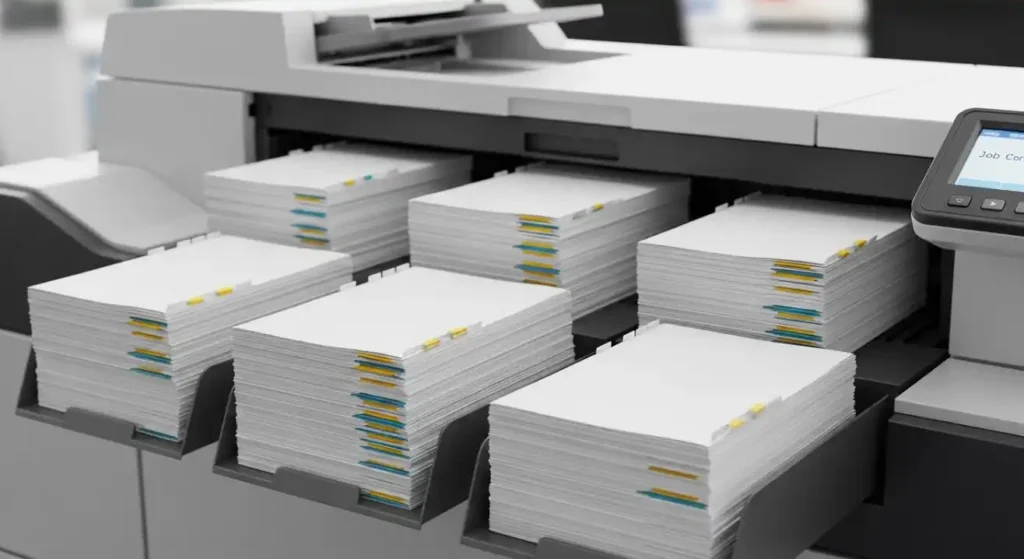
What Does “Print Collated” Actually Mean?
If you’ve ever sent a multi-page document to the printer and ended up sorting through a messy pile of repeated pages, you already know why print collated exists. The print collated setting controls how your printer organizes multiple copies of a document. It’s a small checkbox that makes a huge difference — especially when you’re printing reports, booklets, or handouts for a meeting.
Understanding this setting can save you time, frustration, and a lot of manual shuffling.
How Collated Printing Works
When you print collated, the printer outputs each full copy of the document before starting the next one. So if you’re printing three copies of a five-page document, it prints pages 1-2-3-4-5, then 1-2-3-4-5 again, and once more for the third copy.
Without collating (called uncollated printing), the printer outputs all copies of page 1 first, then all copies of page 2, and so on. You’d get 1-1-1, 2-2-2, 3-3-3 — which means you’d have to manually assemble each set afterward.
Quick comparison:
- Collated: 1-2-3-4-5 / 1-2-3-4-5 / 1-2-3-4-5
- Uncollated: 1-1-1 / 2-2-2 / 3-3-3 / 4-4-4 / 5-5-5
When Should You Use Collated Printing?
This is where a lot of people get confused. Collated printing isn’t always the right choice — it depends entirely on what you’re printing and how you’ll use it.
Best situations for collated printing:
- Presentations and reports — Each person gets their own ready-to-read copy straight from the printer.
- Booklets and manuals — Page order matters, and collating keeps everything in sequence.
- Meeting handouts — No one wants to sit around while you manually sort 20 copies of a six-page agenda.
- Contracts and legal documents — Every copy needs to be complete and in order.
When uncollated printing makes more sense:
- Flyers or single-page documents — There’s nothing to collate anyway.
- Sticker sheets or labels — You want multiples of the same page together.
- Stapled packets assembled by page type — Some workflows specifically require pages grouped by type before binding.
Area Code Manassas VA: Everything You Need to Know
A Practical Example of Print Collated in Action
Let’s say you’re a teacher printing a 10-page quiz for 30 students. You open the print dialog, set copies to 30, and make sure collated is checked.
The printer works through the entire quiz once per student — 30 times in a row. When the job is done, you have 30 neat, complete quiz packets sitting in the output tray. You just pick them up and hand them out.
Now imagine you forgot to check that box. You’d have 30 copies of page 1, then 30 copies of page 2, all the way to page 10. You’d spend the next 15 minutes sorting 300 individual pages into 30 separate sets. Not ideal before a class starts.
Pros and Cons of Collated Printing
Every setting has trade-offs. Here’s an honest look at both sides.
Pros:
- Saves significant time when printing multiple full copies
- Documents come out ready to distribute with no manual sorting
- Reduces errors — especially with long documents
- Ideal for professional environments with high print volumes
- Works seamlessly with most modern printers and software
Cons:
- Slightly slower printing speed in some cases (printer must process the full document per copy)
- Uses more printer memory compared to uncollated jobs on older hardware
- Can be confusing when combined with duplex (double-sided) printing settings
- Not necessary — and occasionally counterproductive — for single-page documents
Common Mistakes People Make With Collated Printing
Even experienced office workers run into issues here. These are the mistakes that come up most often.
1. Leaving the setting on by default when it isn’t needed Some print dialogs default to collated. If you’re printing a stack of the same flyer, this doesn’t hurt you — but it’s worth knowing what’s happening behind the scenes.
2. Confusing collated with duplex printing These are two separate settings. Collated controls copy order. Duplex controls whether the printer prints on both sides of the paper. You can use them together or independently.
3. Not checking the setting before a large print job Always preview your print settings before sending a big job. Discovering the issue after printing 500 uncollated pages is a painful (and wasteful) lesson.
4. Assuming all printers handle collation the same way Most modern printers handle software collation, meaning your computer organizes the job. Some older or basic models rely on hardware collation, which can behave differently. Check your printer’s documentation if you’re getting unexpected results.
5. Forgetting to adjust when switching between document types If you regularly print both multi-page reports and single-sheet notices, build a habit of double-checking the collate setting each time you switch tasks.
Best Practices for Collated Printing
Follow these habits and you’ll rarely run into collation-related headaches.
- Always review the print preview before confirming large jobs. Most applications show you exactly how the output will be organized.
- Use named print profiles. If you regularly print the same types of documents, save a collated profile and an uncollated profile in your printer software.
- Match your stapling or binding plan to your collation setting. If you’re stapling booklets, collated is almost always what you want.
- Test with a small batch first. For new print jobs over 50 copies, print five copies first to confirm the output looks right.
- Communicate settings to your team. In shared office environments, make sure everyone understands the difference — especially if they’re printing on behalf of someone else.
Collated Printing in Different Software
The good news is that virtually all major software supports this setting, and it’s usually easy to find.
- Microsoft Word / Excel / PowerPoint: In the print dialog, look for the Copies section. The collate checkbox is right next to the number of copies.
- Google Docs: Under File > Print, the option appears in the print settings panel on the left.
- Adobe Acrobat: Found in the print dialog under the Copies and Pages section.
- macOS print dialog: Available in the standard print panel for any application.
The label might say “Collate,” “Collated Copies,” or occasionally be represented with a small icon showing stacked pages. It’s almost always near the copy count field.
Conclusion
Print collated is one of those settings that most people overlook until they’ve made the mistake of ignoring it once. Once you understand what it does — and when to use it — it becomes second nature to check before any multi-page print job.
The core idea is simple: collated keeps your copies in order, saving you from manual sorting. Use it for reports, handouts, booklets, and any document where page sequence matters. Skip it (or simply leave it unchecked) when you’re printing single pages or when your workflow calls for grouping pages separately.
Take a moment next time you print to glance at that setting. It’s a small habit that pays off quickly — especially in busy office environments where time matters.
FAQs
1. What does print collated mean in simple terms?
Collated printing means each complete copy of your document prints in order before the next copy starts. So all pages of copy one come out first, then all pages of copy two, and so on.
2. Should I print collated or uncollated?
Use collated when printing multiple copies of multi-page documents that need to stay in order — like reports or handouts. Use uncollated when you need all copies of a single page together, such as for manual assembly workflows.
3. Does collated printing affect print speed?
It can slightly slow down printing on some older printers because each full document must be processed per copy. Modern printers and laser printers handle this efficiently with minimal speed difference.
4. Is collated printing the same as duplex printing?
No. Collated refers to copy order across multiple copies. Duplex means printing on both sides of a sheet. They are independent settings that can be used together or separately.
5. Where do I find the collate setting on my printer?
It’s typically located in the print dialog box next to the number of copies field. Look for a checkbox labeled “Collate” or “Collated Copies” in Word, Google Docs, Adobe Acrobat, or your operating system’s standard print panel.
Frequently Asked Questions
What is Print Collated: What It Means and When to Use It?
Print Collated: What It Means and When to Use it’s a topic that many people search for. This article provides a thorough overview based on current information and expert analysis available in 2026.
Why does Print Collated: What It Means and When to Use It matter?
Understanding Print Collated: What It Means and When to Use It helps you make better decisions. Whether you’re a beginner or have some experience, staying informed on this topic is genuinely useful.
Where can I learn more about Print Collated: What It Means and When to Use It?
We recommend checking authoritative sources and official websites for the most current information. This article is regularly updated to reflect new developments.
Source: Britannica
Related Articles
- Discover ZVideo: The Ultimate Hub for Streaming and Sharing Videos
- How to Find Slant Asymptotes: A Complete Guide
- Step-by-Step Guide on How to Powerwash a Chromebook and
Editorial Note: This article was researched and written by the Floral Loft SAC editorial team. We fact-check our content and update it regularly. For questions or corrections, contact us.