
If you’ve ever sent a multi-page document to the printer and wondered what that little “collate” checkbox actually does — you’re not alone. The collate meaning in printing trips up a lot of people, from office workers to students to small business owners. It sounds technical, but once you understand it, it genuinely changes how you manage print jobs.
In simple terms, collating means printing your pages in the correct sequence for each complete copy. So instead of getting a messy stack you have to sort through manually, your printer does the organizing for you. Let’s break this down properly.
What Does Collate Mean in Printing?
When you print multiple copies of a document, your printer has two options: collated or uncollated.
Collated printing means the printer outputs one full set at a time. If you’re printing 3 copies of a 5-page document, it prints pages 1–2–3–4–5, then 1–2–3–4–5 again, then one more time. Each set comes out ready to use.
Uncollated printing means it prints all copies of page 1 first, then all copies of page 2, and so on. You end up with three stacks — one per page — and you have to assemble the sets yourself.
It’s a small setting, but it saves a huge amount of time when you’re printing in bulk.
How Collating Actually Works
Most modern printers handle collating automatically through their internal memory or the print driver software. When you select “collate” in your print dialog box, the printer stores the full document temporarily and cycles through it for each copy.
Here’s a quick visual example:
Printing 3 copies of a 4-page report:
- Collated: 1,2,3,4 → 1,2,3,4 → 1,2,3,4
- Uncollated: 1,1,1 → 2,2,2 → 3,3,3 → 4,4,4
For something like a stapled handout or a booklet, collated is almost always what you want.
When Should You Use Collate in Printing?
This is where it gets practical. Collating isn’t always the right choice — it depends on your situation.
Use Collated When:
- You’re printing multi-page handouts for a meeting or class
- You’re creating booklets, reports, or proposals
- Documents will be stapled, bound, or distributed individually
- You want to save time sorting pages manually
Use Uncollated When:
- You only need multiple copies of a single page (like a flyer)
- You’re printing pages that will be cut and sorted differently
- A print shop needs to handle finishing in a specific order
- You’re printing on both sides and managing the order manually
Knowing when to switch between these two settings can save you serious time — especially when you’re printing 50+ copies of something.
How Long to Boil Small Potatoes
Collating in Different Printing Contexts
Collating shows up in more places than just your office printer.
Home and Office Printing This is the most common use case. Whether you’re printing agendas, contracts, or training materials, selecting collate means every packet comes out ready to hand over without any manual sorting.
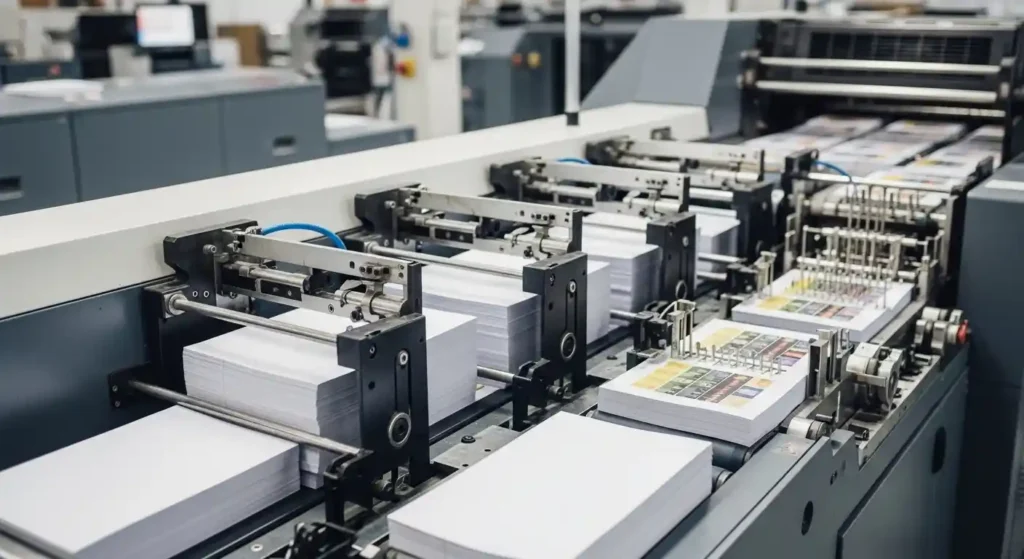
Commercial and Bulk Printing In professional print shops, collating is often done mechanically by finishing equipment. Large machines can collate, staple, fold, and bind in one seamless process. This is how companies produce thousands of magazines, catalogs, or instruction manuals efficiently.
Digital Publishing and PDF Tools Even outside physical printing, the concept of collating applies when merging or arranging PDF pages. Tools that let you reorder pages before printing use the same logic — getting everything in the right sequence before output.
Pros and Cons of Collated Printing
Like any tool, collated printing has its strengths and its limits.
Pros:
- Saves manual sorting time, especially for large print runs
- Reduces errors — no missing pages or mixed-up sets
- Makes distribution much faster and easier
- Looks more professional when handing out documents
Cons:
- Slightly slower print speed (the printer processes more data per cycle)
- Uses more printer memory for complex documents
- Not ideal for single-page or simple print jobs where it adds no value
- Some older printers may struggle with large collated jobs
For most everyday printing tasks, the pros easily outweigh the cons.
Common Mistakes People Make With Collating
Even experienced users get caught out by these. Here’s what to watch for:
1. Leaving collate on when printing single-page documents It doesn’t cause problems, but it’s unnecessary and can slow things down.
2. Confusing collate with duplex printing Duplex means printing on both sides. Collate is about page order. They’re separate settings, though you often use both together.
3. Not checking the setting before a large print run Always double-check collate is enabled before printing 50 copies of a report. Fixing it afterward is painful.
4. Assuming all printers handle collating the same way Older or budget printers may collate using the computer’s processor instead of their own memory, which can slow down your system.
5. Forgetting collate when using third-party print software Some PDF readers or graphic tools reset print preferences. Always review your settings in the print preview window.
Best Practices for Collated Printing
A few simple habits make a big difference:
- Always preview before printing. Use the print preview to confirm page order looks correct before committing to a large run.
- Set collate as your default if you regularly print multi-page documents. Most print drivers let you save default preferences.
- Group your print jobs smartly. If you’re printing different documents for the same event, collate and print each one separately rather than merging them into one chaotic job.
- Test with a small batch first. Before printing 100 copies, run 2–3 collated copies to verify everything looks right.
- Label your stacks. For large print runs with multiple document types, label each collated stack immediately to avoid mix-ups later.
Conclusion
Collating is one of those features that quietly does a lot of heavy lifting. Once you understand what it means and when to use it, you’ll wonder how you managed without it. Whether you’re printing a few meeting agendas or running off hundreds of training packs, getting the collate setting right saves time, reduces stress, and keeps your workflow clean.
Next time you open that print dialog box, take a second to check the collate option. It’s a small click that makes a noticeable difference.
Frequently Asked Questions (FAQs)
1. What does collate mean in printing?
Collate in printing means outputting multiple copies of a document in sequential page order, so each complete set comes out together rather than all copies of one page at a time.
2. Should I print collated or uncollated?
Choose collated when printing multi-page documents you need in complete sets. Use uncollated when printing single pages in bulk or when a finishing team will sort them manually.
3. Does collating slow down printing?
It can slightly reduce speed because the printer processes the full document for each copy. However, for most home and office printers, the difference is minimal.
4. Is collating available on all printers?
Most modern printers support collating through their print driver. Some older or basic models may rely on the computer to handle it, which can be slower.
5. Can I collate pages in a PDF before printing?
Yes. PDF tools like Adobe Acrobat allow you to reorder, merge, and arrange pages before printing, effectively letting you collate digitally before sending to the printer.