
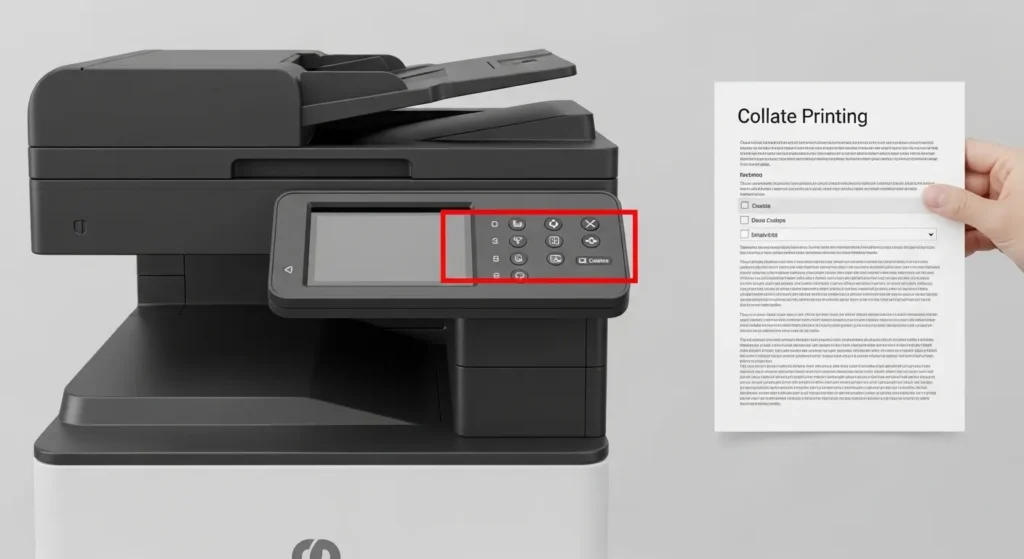
What Is Collate Printing and Why Should You Care?
If you’ve ever stood at a printer wondering whether to check that little “collate” box or leave it unchecked, you’re not alone. Collate printing is one of those features that most people overlook — until they’re manually sorting through 200 loose pages and wishing they’d paid more attention. Understanding how it works can save you serious time and frustration, whether you’re printing at home, at the office, or through a professional print shop.
Understanding Collate Printing: The Basics
At its core, collating means arranging printed pages in a specific, sequential order. When you print multiple copies of a multi-page document with collate turned on, your printer outputs each complete set one at a time — pages 1, 2, 3… then starts fresh for the next copy.
When collate is turned off, the printer groups pages by number instead. So you get all the Page 1s first, then all the Page 2s, and so on.
Here’s a simple way to picture it:
Collate ON (3 copies of a 4-page doc):
1-2-3-4 | 1-2-3-4 | 1-2-3-4
Collate OFF:
1-1-1 | 2-2-2 | 3-3-3 | 4-4-4
One setting hands you ready-to-go booklets. The other hands you a sorting project.
When Should You Use Collated Printing?
For Reports, Presentations, and Handouts
Anytime you’re printing documents that need to stay in order — meeting agendas, business proposals, training manuals — collating is the obvious choice. Each set comes out ready to staple or bind without extra effort.
For Classroom or Event Materials
Teachers printing lesson packets, event organizers printing schedules, or anyone distributing informational packets will benefit massively from collated output. Imagine printing 30 copies of a 10-page handout. With collate on, you grab 30 neat stacks. Without it, you’re shuffling pages for the next 20 minutes.
When Collate OFF Actually Makes Sense
There are situations where uncollated printing is genuinely useful:
- Printing single-page documents — collating makes no difference here
- When you need to print on specialty paper — loading different paper types for certain pages works better uncollated
- Large-volume jobs at print shops — some commercial printers sort and bind more efficiently from grouped stacks
TwizChat.com Review: Features, Pros, and How It Works
How to Turn Collate On or Off
The process varies slightly depending on your setup, but it’s straightforward across the board.
On Windows
- Press Ctrl + P to open the print dialog
- Select your printer
- Look for a “Copies” section
- Check or uncheck the “Collate” box
- Hit Print
On Mac
- Open File > Print (or Cmd + P)
- Expand the print options if needed
- Find the Copies field — the collate checkbox is right next to it
- Adjust and print
In Google Docs or Microsoft Word
Both applications include collate settings directly in the print dialog. Word even shows a visual preview of collated vs. uncollated output, which makes it easier to confirm you’ve chosen the right option before committing.
Pros and Cons of Collate Printing
Pros
- Saves time — No manual sorting after printing
- Reduces errors — Pages come out in the correct sequence automatically
- Professional results — Documents are ready to hand out immediately
- Ideal for bulk printing — Especially efficient when printing 5+ copies
- Less room for human error — Sorting by hand often leads to mixed-up pages
Cons
- Slower print speed — The printer has to process the full document repeatedly rather than printing one page type in a batch
- Higher wear on the printer — Repeated full-document passes can put more load on the machine over time
- Not ideal for single-page jobs — Adds unnecessary complexity where none is needed
- Can slow down shared office printers — Long collated jobs can create a bottleneck in busy environments
Common Mistakes People Make With Collate Printing
Even though the concept is simple, people still run into avoidable problems. Here are the most frequent ones:
1. Leaving collate on for single-page documents It doesn’t cause any harm, but it can slow print processing for no reason. If you’re printing one-pagers in bulk, turn collate off.
2. Forgetting to check the setting before a big job Always confirm your collate preference before sending a 50-copy job to the printer. Reprinting a large batch because the pages came out grouped wastes both paper and time.
3. Assuming all printers default to collate ON Some printers default to collated, others don’t. Don’t assume — always check the dialog before printing.
4. Confusing collate with duplex printing These are different settings. Duplex controls whether both sides of the paper are used. Collate controls page order across copies. They can be used together, but they serve different purposes.
5. Not using it for bound documents If you’re printing something that will be stapled, spiral-bound, or placed in a folder, collating is almost always the right move. Skipping it just creates extra work downstream.
Best Practices for Getting the Most Out of Collated Printing
Follow these habits and your print jobs will run smoother every time:
- Always preview before printing — Use the print preview to confirm page order looks correct
- Set collate as your default — If most of your print jobs are multi-page documents, set collate ON as your default printer preference
- Use print presets for recurring jobs — Many printers and print software let you save settings. Create a preset for common jobs like “10-page report, 5 copies, collated”
- Match your collate setting to the end use — Ask yourself: will these pages need to stay in order? If yes, collate on. If no, collate off.
- Communicate clearly with print shops — When outsourcing printing, always specify collation preference in writing to avoid miscommunication
A Quick Real-World Example
Say you’re running a small workshop with 15 attendees. You’ve put together a 6-page resource guide. Here’s how the two options play out:
With collate ON: The printer outputs 15 complete, ordered sets. You grab them, maybe staple them, and you’re done in minutes.
With collate OFF: The printer outputs 15 copies of page 1, then 15 of page 2, and so on. Now you’re at the table assembling packets manually, hoping you haven’t mixed anything up.
The difference in that scenario isn’t just convenience — it’s the difference between a smooth morning and a stressful one.
Conclusion
Collate printing is a small setting with a surprisingly big impact on your workflow. Once you understand what it does and when to use it, it becomes second nature. For anyone printing multi-page documents in multiple copies, collating is almost always the right call. It keeps pages in order, eliminates manual sorting, and gives your printed materials a clean, professional feel right out of the printer.
Take a moment next time you print to check that box. Your future self — standing at the printer with neatly stacked packets — will thank you.
Frequently Asked Questions
Q1: What does collate mean in printing?
Collate in printing means the printer outputs full, sequential sets of a document one at a time. If you print 3 copies of a 5-page document, you get three complete sets in order rather than grouped stacks of each page.
Q2: Should I print collated or uncollated?
Use collated when printing multi-page documents in multiple copies that need to stay in sequence — like reports or handouts. Use uncollated when printing single-page documents or when a print shop is handling the finishing work.
Q3: Does collate printing affect print quality?
No, collating does not affect print quality at all. It only changes the order in which pages are output. Image resolution, color, and paper quality remain the same regardless of collate settings.
Q4: Why does collated printing take longer?
Collated printing takes longer because the printer processes the entire document repeatedly for each copy. Uncollated printing batches identical pages together, which is faster for the printer’s processing cycle.
Q5: Where is the collate option in Microsoft Word?
In Microsoft Word, go to File > Print. In the print dialog, you’ll see a Copies field near the top. The Collate checkbox or dropdown is located directly beside it, often with a small visual diagram showing the output order.